A guide to High Dynamic Range (HDR)
Multiple image HDR - Single image HDR
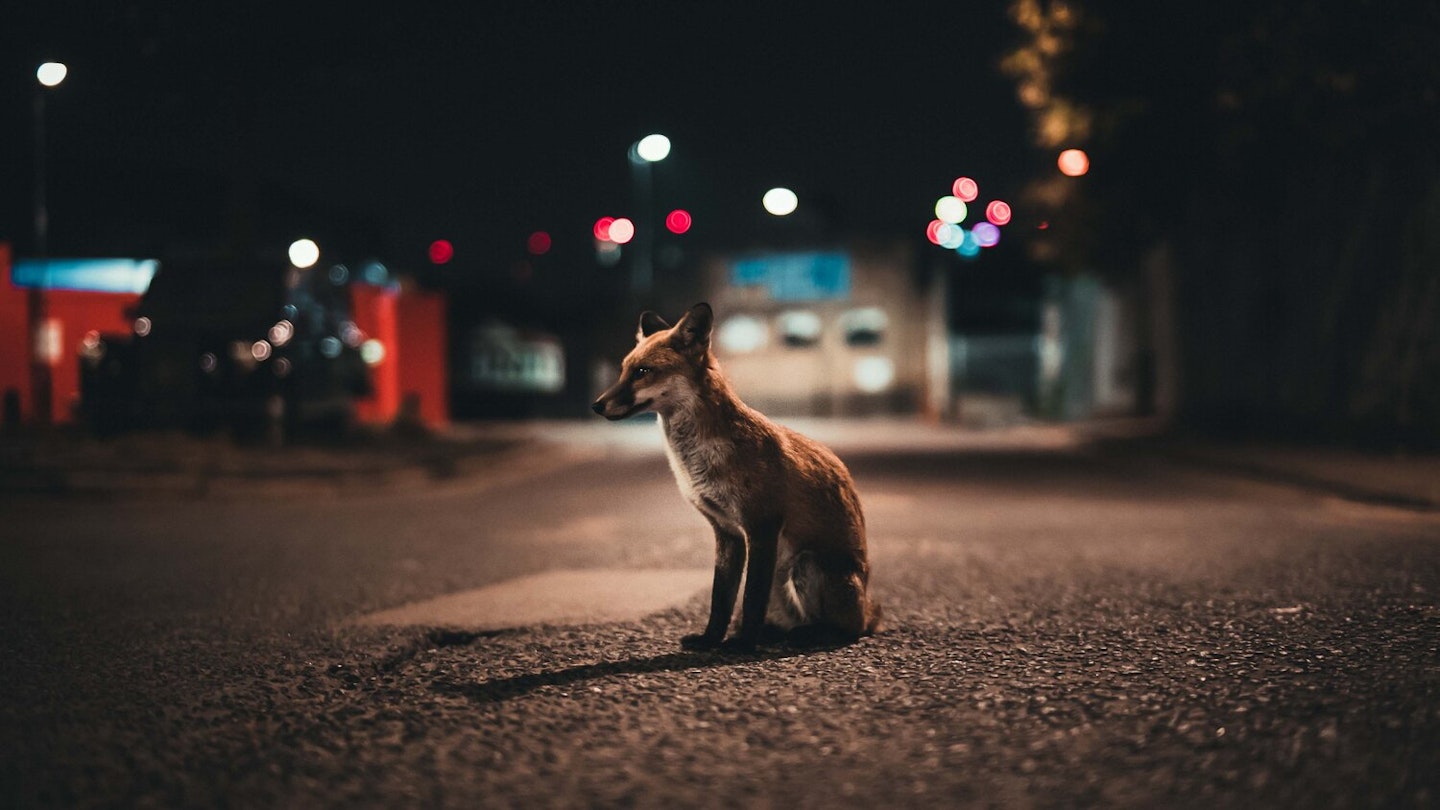
High dynamic range (or HDR) technique allows you to reveal detail and contrast that are missing from normal images. Generally, HDR is used to deal with high contrast subjects to allow you to capture more highlight and shadow detail than conventional photography – meaning it’s great for low light/night images.
But you don’t have to wait until twilight to get loads out of this relatively new imaging method. For example, it can be used in dull, overcast conditions too. Strictly speaking this isn’t true HDR, because you are only working with the tones available in your normal, single shot.
True HDR involves taking several shots at different exposures, to capture the maximum dynamic range, then combining them into one image. Whichever technique you want to try out, you need the software to enable you to combine the images.
We recommend Photomatix Pro 2.3.2 from HDRsoft. This is available to download from www.hdrsoft.com. There’s a basic version that’s available for free. The full version of the software costs around $99, but you can also download a free trial version to play around with first.
There’s also an HDR function built into Photoshop CS2 but it doesn’t offer all the options and controls available in the Photomatix software, so the results are more difficult to get right.
If you want to join in the debate about HDR and its role in photography on the Photo answers forum, click here.
Multiple image HDR
Shooting the images
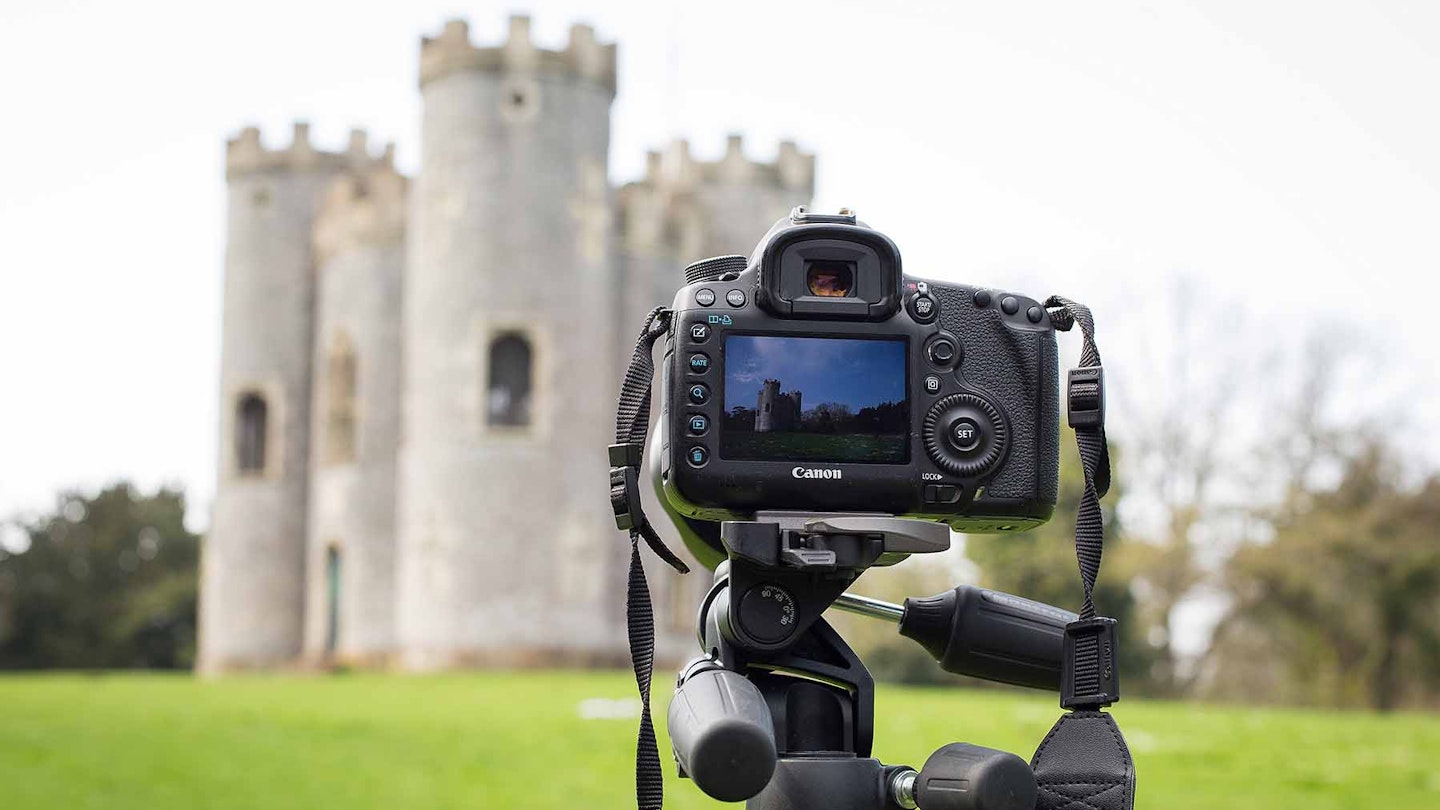
The key to this technique comes from shooting the same scene using different exposures. It’s vitally important that your camera doesn’t move between the different exposures so that all the images line up successfully in the final image so use a tripod. Here’s how we took the images for our night harbour scene. Working in full manual mode, we altered the shutter speed by two stops each time to take four different images. Four shots gave a wide enough tonal range to combine, although you can shoot as many different images as you require. However, this just adds to the amount of work you need to do later.
It also helps to get the white balance and colours of your image right before you start processing them. If you shoot JPEGs you need to get these right in-camera, but RAWs can be fine-tuned in your RAW processing software. If you do choose to adjust RAWs, make sure you apply the same white balance and colour settings to all the images that you want to combine.
Using the software
Start by loading the images you’ve shot using the Generate option in the HDR menu of the Photomatix software. For digital camera images it’s best to use the Assume Standard Tone Curve option, then click OK. If you’ve shot the images correctly the software will automatically combine them, but if it cannot read the exposure data from the files it will give you the option of specifying the exposure difference between the shots.
The resulting image you’ll get is likely to look pretty awful, with no highlight or shadow detail. Don’t panic. To merge them successfully you need to use the Tone Mapping function in the HDR menu. This is where you can alter the way the images are combined.
The controls look pretty daunting at first, but it’s simply about making the exposure of the preview image appear as balanced and even as you possibly can.
There are two types of tone mapping offered by the HDR software that we used. The best option for night shots is to use the Details Enhancer option, rather than the Tone Compressor, then adjust the Strength to control the contrast of the image. Next, adjust the other controls such as the Saturation and Luminosity to achieve a balanced result. The Micro-contrast and Micro-smoothing controls are used to eliminate any halos around light or dark objects in the image. Once you are happy with the result click OK, then save it as a TIFF.
Single image HDR technique
This time you are only going to take one shot but, using the huge amount of information contained in a RAW file, you will bring out a greater range of tones than would normally be possible. The ‘hyper-real’ results will never match the scene you’ll capture with conventional imaging techniques so won’t be liked by everyone.
Shooting your image
As you’re only taking one shot you don’t even need to use a tripod (unless you are using a slow shutter speed). The important aspect to shooting an image for HDR is to make sure that your RAW file captures all of the highlight detail in the scene. Depending on your subject you may find that you need to underexpose by around a stop to make sure that all this highlight detail is present, and use the camera’s histogram or highlight warning facility to check the exposure.
Converting the Raw file
Once you’ve shot your RAW image you need to convert it. All you need to do is make three conversions of the image, adjusting exposure compensation in your RAW conversion software. The most important thing is to make sure all the other settings of the three conversions are the same.
So with your images ready for conversion set the exposure compensation to -2, 0 and +2 stops for each conversion respectively, and output the files as 16-bit TIFF files to keep the maximum amount of tonal information. If your computer doesn’t have at least 2GB of RAM you may find that you have to use 8-bit files though, as the HDR conversion takes a lot of memory to complete successfully.
If each conversion looks a little flat don’t worry. It’s best to keep any saturation or vibrance adjustments to a minimum as the HDR process tends to increase the saturation of your shots.
Using the software
1 From the drop-down menu at the top of the Photomatix window choose HDR>Generate to start creating your HDR image. You’ll then need to choose the three images that you converted using the Browse button, then click OK. A new window will appear asking you to specify the exposures of the three images. This is simply because the software won’t be able to automatically calculate the exposure information that it needs. So you need to enter -2, 0 and +2 in the relevant boxes next to the images in this window and click OK. |
|
2 With the three images loaded into the software you’ll almost certainly be faced with an image that’s contrasty and lacking detail that’ll make you think something has gone wrong with the software. This is just an intermediate stage to getting your final image. |
|
3 To achieve your HDR image you need to use a feature known as Tone Mapping. Find this from the HDR drop-down menu at the top of the window. This will open a new Tone Mapping window with a preview of the image and a range of controls to adjust the image. First make sure that you are using the Details Enhancer option at the top of the window, rather than the Tone Compressor. Using multiple RAW conversions rather than separate exposures you should find that the default settings, which can be set by clicking on the Defaults button at the bottom left of the window, give a reasonable result from this software. You’ll find it easier to see the preview if you select the largest 1024 pixel display, rather than the default 512 pixel size. |
|
|
4 You may need to apply a few tweaks to your image. The most important thing is to make sure that there is a full range of tones. This is achieved by adjusting the Strength and Luminosity sliders, along with the amount of Light Smoothing applied. With the basic image adjusted you can then fine-tune the results by using the White Point, Black Point and Gamma sliders to achieve a realistic-looking result, keeping an eye on the histogram to ensure that it shows a good range of tones in the image. Then click OK, and finally you’ll need to save the HDR image as TIFF or JPEG file.
|
|
Click here for a HDR software test